SERPsKit Amazon Autopilot Lab
The complete guide to your autopilot Amazon affiliate plugin — from installation to AI-generated articles with Claude Opus 4.7 and Article Profiles.
Overview
Fetch Amazon products by ASIN or keyword. Auto-updates prices every 12–24 hours.
Product Box, Comparison Table, Product List, Pros & Cons, Deal Box.
Keywords in → complete articles out. Uses Claude Opus 4.7 or OpenAI.
Claude.ai Project-style profiles with persistent instructions and reference files for premium articles.
Know which products and pages earn you commissions.
Automatic Product, Review, and AggregateRating markup.
What you need
- WordPress 6.0+ running PHP 7.2 or higher
- A license key from SERPsKit (format:
SKA-XXXXX-XXXXX-XXXXX-XXXXX) - Amazon Associates account + PA-API credentials
- An OpenAI or Anthropic Claude API key (required for AI features)
1. Installation
Upload the plugin
Plugins → Add New → Upload Plugin. Choose serpskit-autopilot-lab.zip and click Install Now.
Activate
A new menu called Autopilot Lab appears in your WordPress sidebar.
Verify
Go to Autopilot Lab → Dashboard. A "License Inactive" warning is expected — you'll fix it next.
2. License activation
Go to the License page
Autopilot Lab → License
Paste your license key
Format: SKA-XXXXX-XXXXX-XXXXX-XXXXX
Click "Activate License"
License tiers
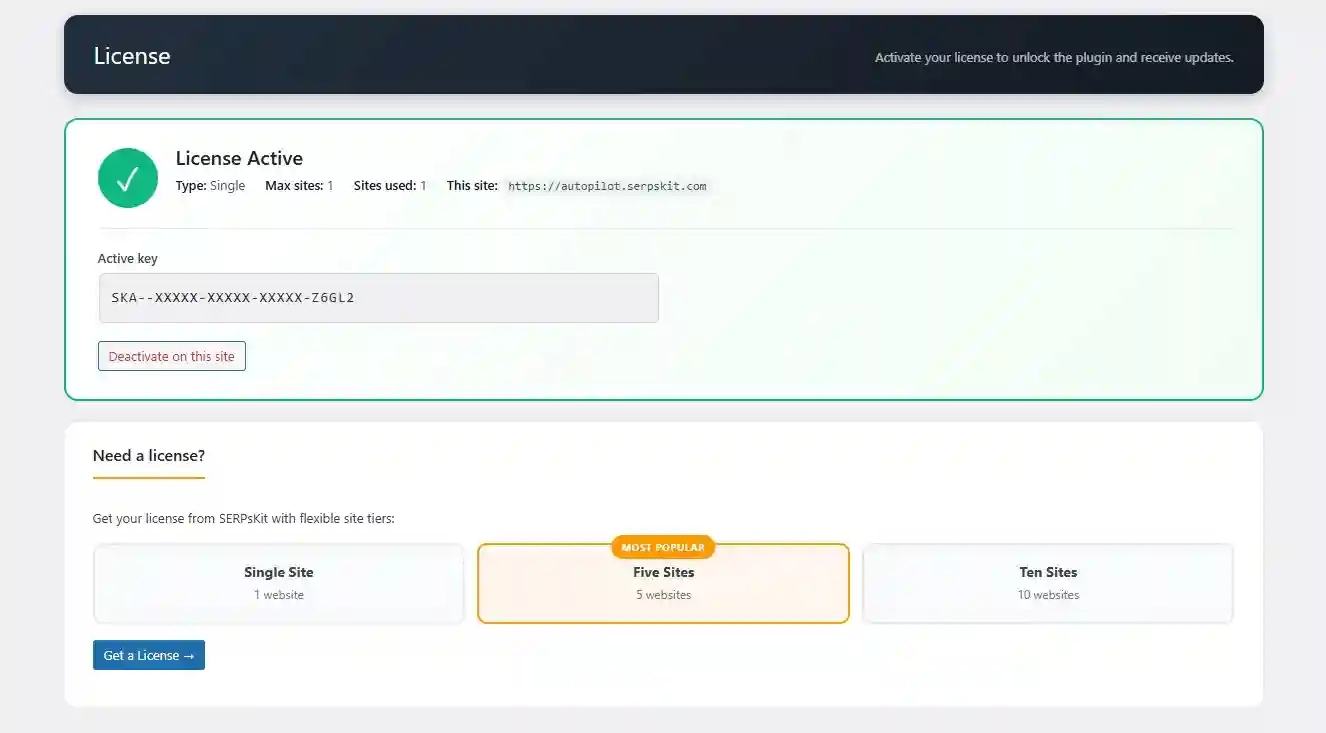
| Tier | Sites | Best for |
|---|---|---|
| Single | 1 website | Personal blog |
| Five | 5 websites | Small agency |
| Ten | 10 websites | Multi-site operator |
Moving a license between sites
On the old site: Autopilot Lab → License → Deactivate on this site. Then activate on the new one.
3. Amazon PA-API setup
PA-API is how the plugin fetches live product data. Without it, only the scraper fallback works (risky).
Getting PA-API credentials
- Log into Amazon Associates
- Tools → Product Advertising API
- Manage Your Credentials → Add Credentials
- Copy Access Key and Secret Key (secret is shown once)
Entering credentials
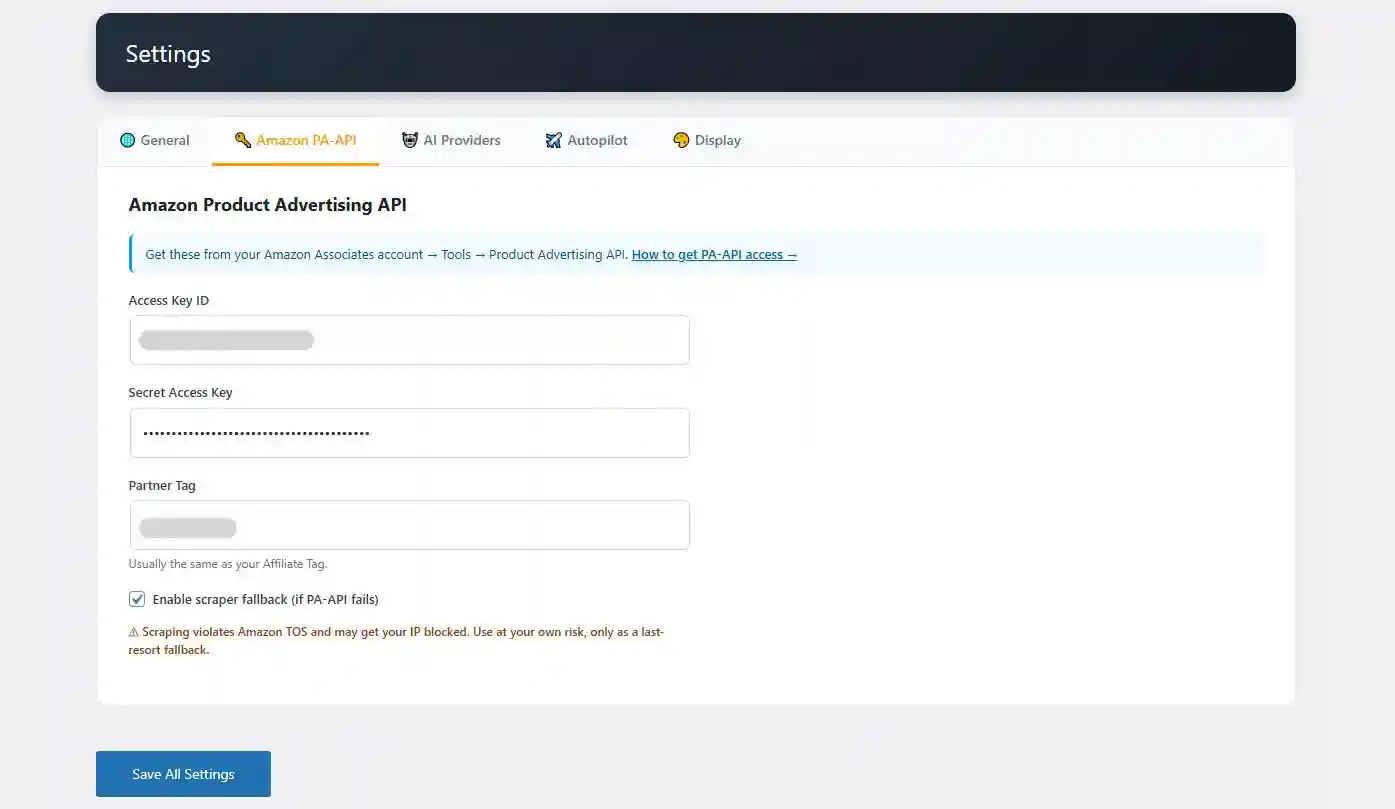
Open Settings → Amazon PA-API tab
Autopilot Lab → Settings → 🔑 Amazon PA-API
Fill in three fields
- Access Key ID
- Secret Access Key
- Partner Tag (usually your affiliate tag, e.g.
yoursite-20)
Set Affiliate Tag in General tab
Save and test
Go to Autopilot Lab → Products, add a known ASIN like B08N5WRWNW.
Supported Amazon locales
US, UK, CA, DE, FR, IT, ES, JP, IN, AU, BR, MX, AE.
Scraper fallback
4. AI provider setup
Configure both OpenAI and Claude so one falls back to the other automatically.
Choosing a provider
| Provider | Strengths | Cost per article |
|---|---|---|
| Claude Opus 4.7 (recommended) | Best writing quality, adaptive thinking | ~$0.05–0.30 |
| Claude Sonnet 4.6 | Cheaper balance | ~$0.02–0.10 |
| OpenAI GPT-4o-mini | Fast & cheap fallback | ~$0.01–0.02 |
Getting API keys
- OpenAI: platform.openai.com/api-keys
- Claude: console.anthropic.com
Both require billing credit before keys work ($5 minimum each).
Configuring
Open Settings → AI Providers
Autopilot Lab → Settings → 🤖 AI Providers
Pick primary and fallback
Recommended: Primary = Claude, Fallback = OpenAI.
Paste API keys and choose models
- Claude model:
claude-opus-4-7(highest quality) - OpenAI model:
gpt-4o-mini(best value fallback)
Enable Adaptive Thinking (recommended)
Claude automatically reasons longer on complex tasks. Set Effort to High.
Save settings
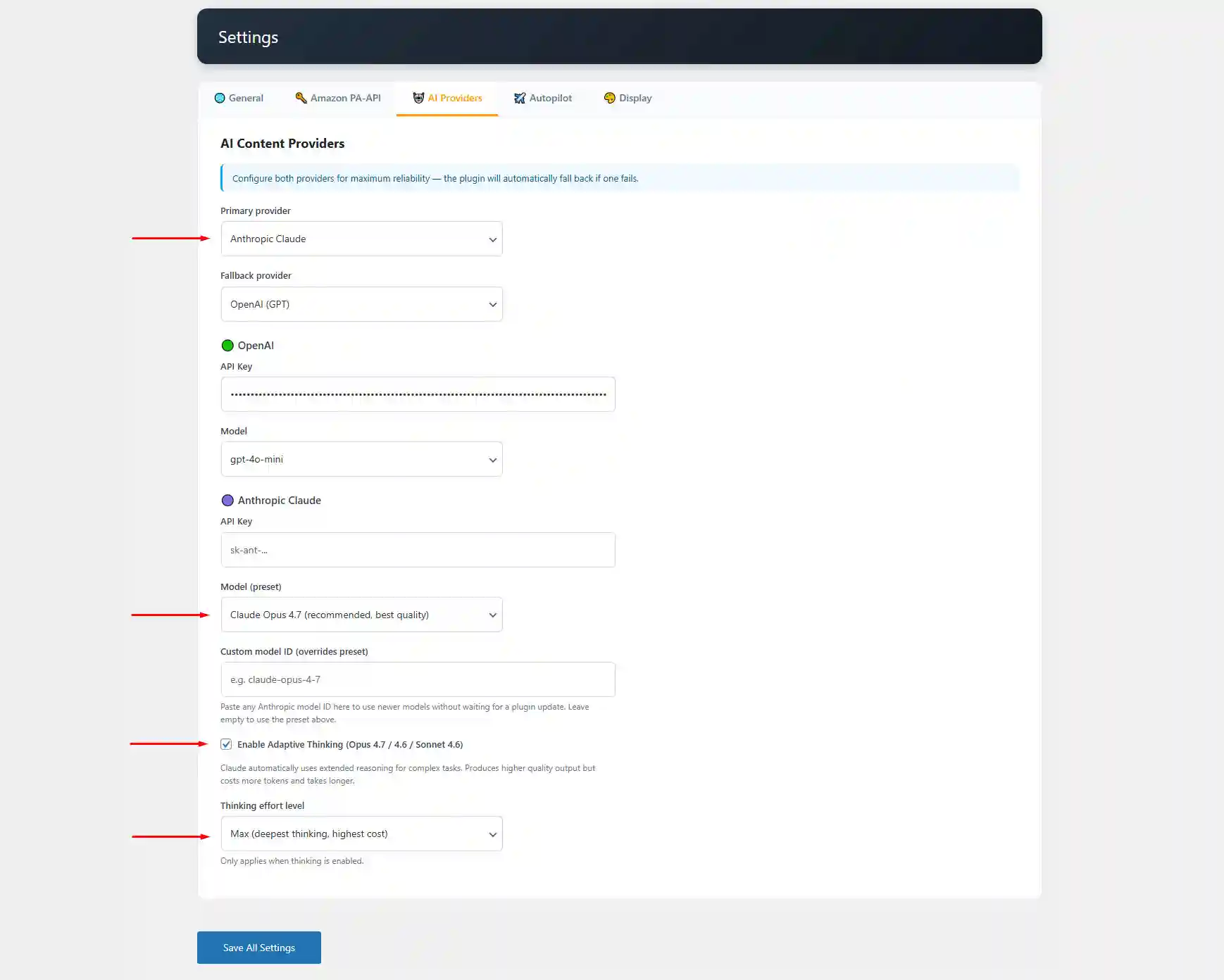
claude-opus-5-0) without waiting for a plugin update.
5. General & display settings
General tab
| Setting | Description |
|---|---|
| Affiliate Tag | Appended to every Amazon link |
| Amazon Locale | Which Amazon store to fetch from |
| Cache duration (hours) | How long product data is cached (≤24h per Amazon TOS) |
Display tab
| Setting | Recommended |
|---|---|
| Open links in new tab | ✓ On |
Add rel="nofollow" | ✓ On |
Add rel="sponsored" | ✓ On |
| Show affiliate disclosure | ✓ On (FTC requirement) |
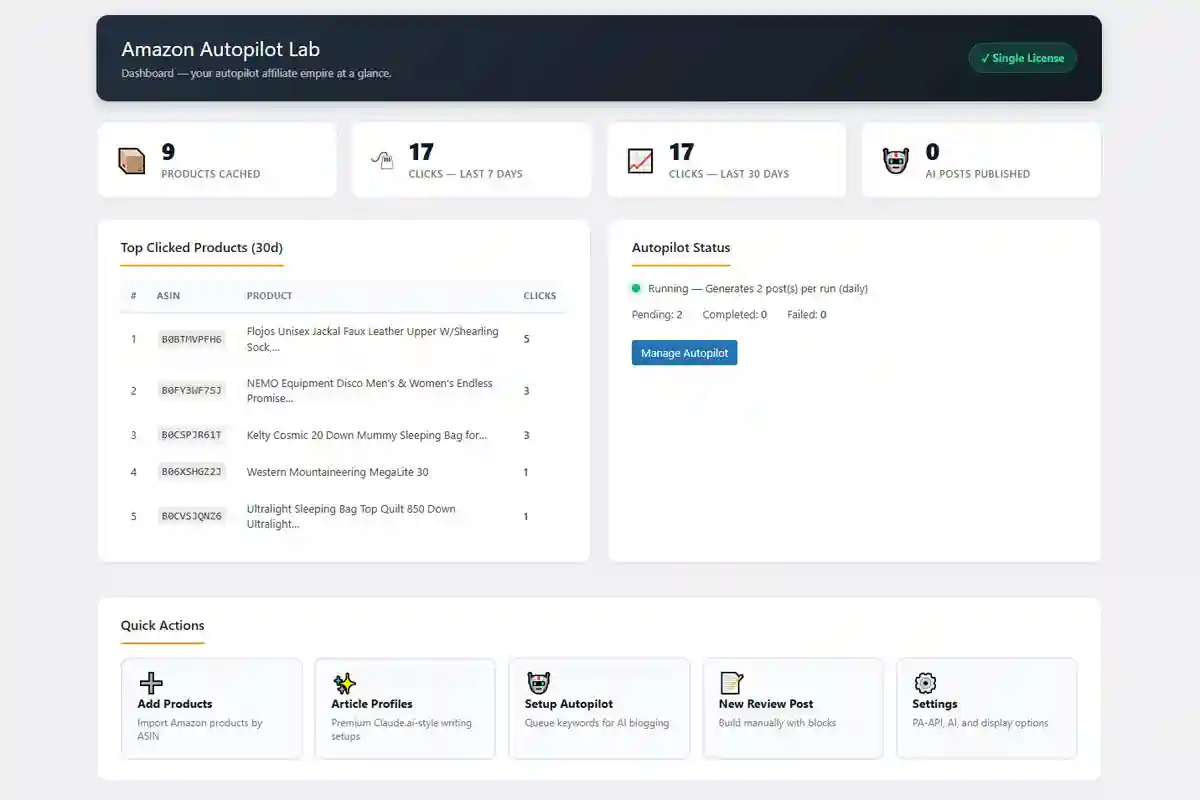
Dashboard
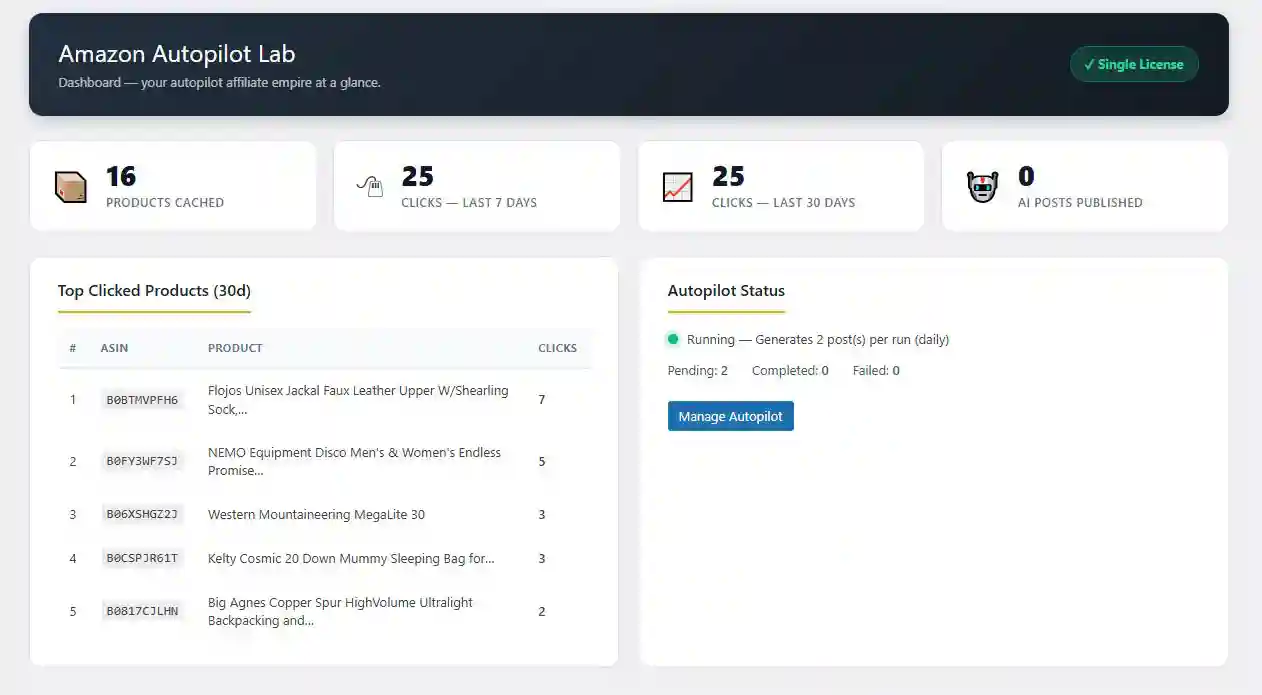
Autopilot Lab → Dashboard shows plugin health at a glance:
- License status pill (top-right)
- 4 stat cards — products cached, 7-day clicks, 30-day clicks, AI posts published
- Top clicked products (30d)
- Autopilot status — running or disabled, plus queue stats
- Quick actions — shortcuts to Products, Autopilot, Article Profiles, Settings
Product library
Autopilot Lab → Products holds all cached Amazon products. Products are added three ways:
- Manually via "Add Product" form
- Automatically when inserted into a block
- In bulk by Autopilot when searching for keywords
Adding a product manually
Find the ASIN
The 10-character code in any Amazon URL: amazon.com/dp/B08N5WRWNW/
Paste into the form
Select locale, click Fetch & Add.
Actions
- ⟳ Refresh — re-fetches live data
- ✕ Delete — removes from cache (re-fetches on next view)
Gutenberg blocks
All 5 blocks live in the Amazon Affiliate category. Open any post, click +, search "amazon".
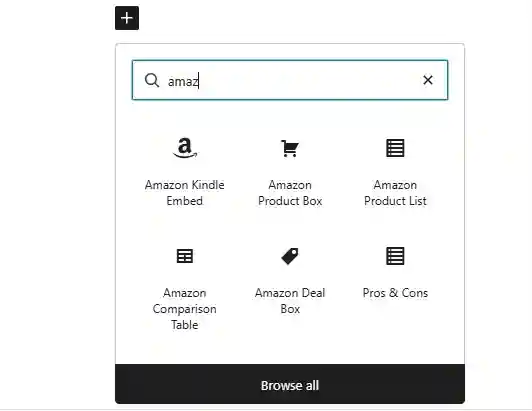
🛒 Product Box
Single product card for inline mentions.
How to use
- Insert the Amazon Product Box block
- Enter ASIN in the placeholder or sidebar
- Block auto-fetches and previews
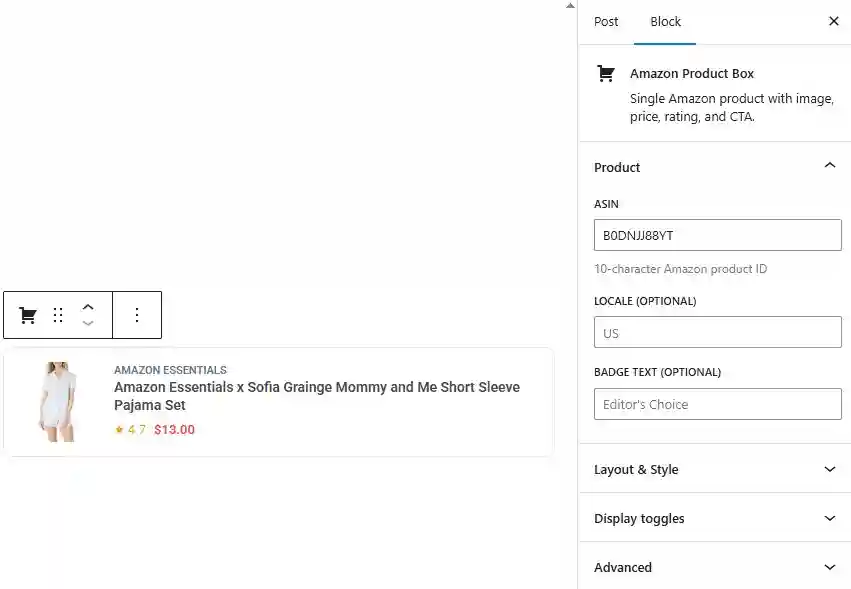
Key settings
| Setting | Description |
|---|---|
| Layout | Horizontal or Vertical (card) |
| Style | Modern, Minimal, Bold, Glass |
| CTA text | Button label, e.g. "Check on Amazon" |
| Badge | Ribbon text like "Editor's Choice" |
| Toggles | Show/hide rating, price, features, Prime |

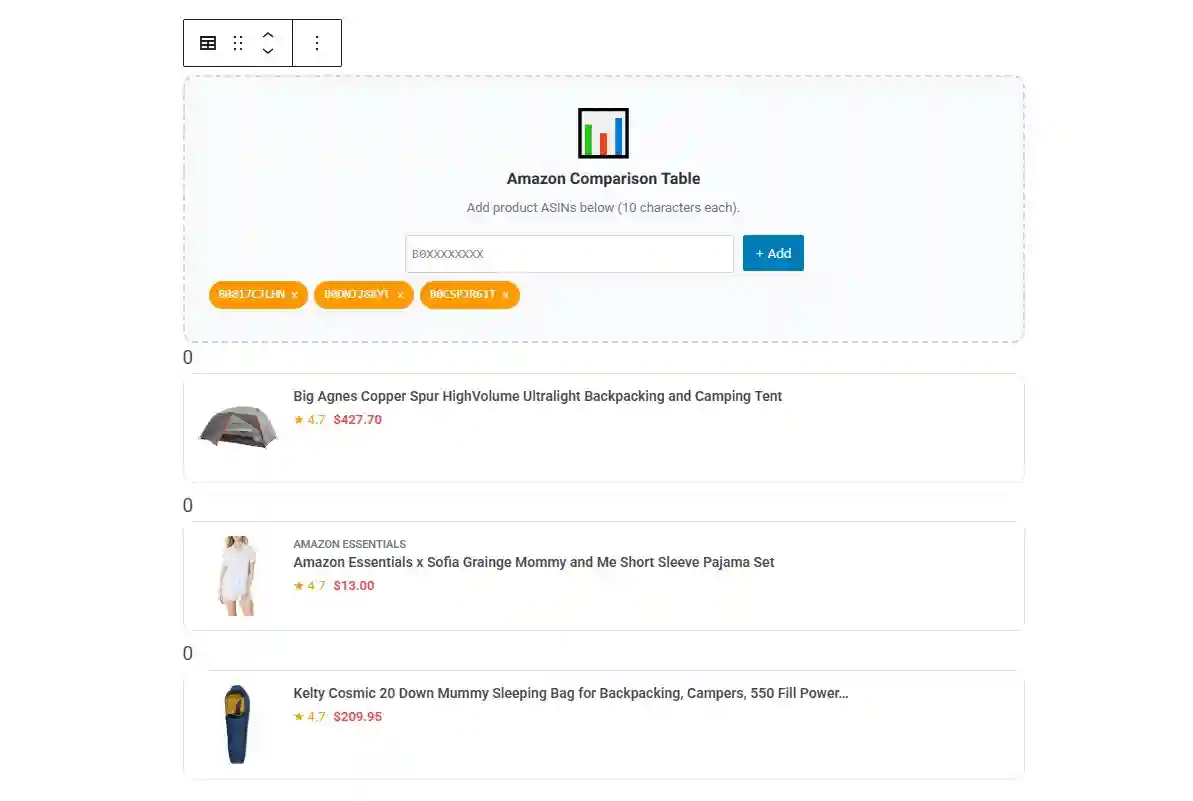
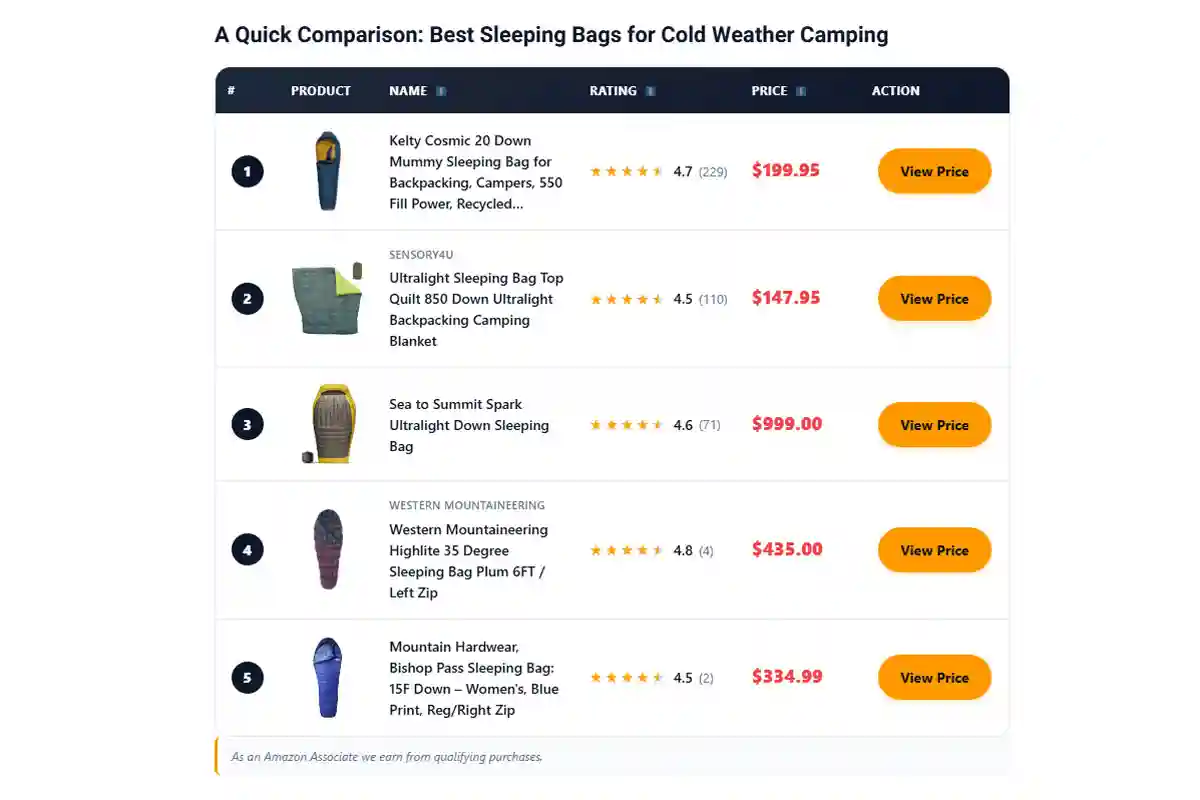
📊 Comparison Table
The highest-converting block — compare 2–10 products side by side.
How to use
- Insert the block
- Add ASINs one by one (press Enter or click + Add)
- Remove any ASIN by clicking × next to its pill
Key settings
| Setting | Description |
|---|---|
| Table title | Optional heading above the table |
| CTA text | Button in the action column |
| Show rank column | Adds #1, #2, #3 badges |
| Sortable columns | Users can click Rating/Price to sort |
| Highlight row | Row number for "Editor's Pick" marker |
📋 Product List
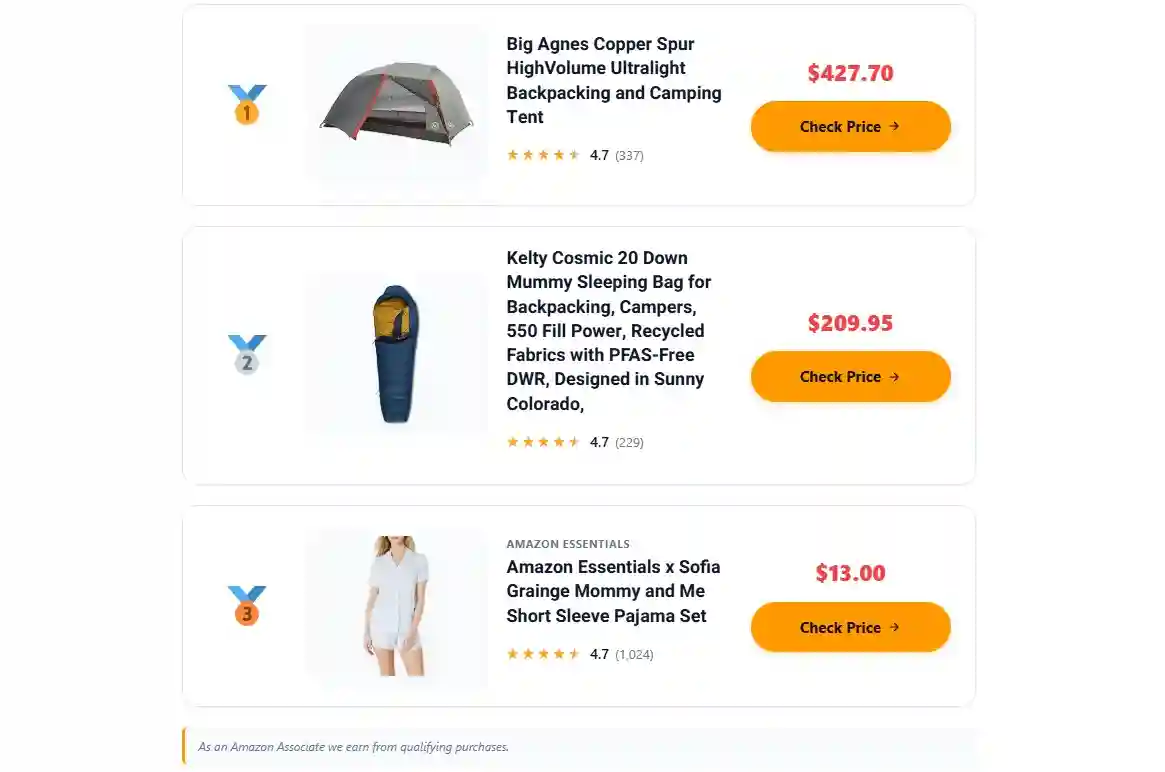
Vertical ranked list for "Top 10" articles.
How to use
- Insert the block
- Add ASINs in order (first = #1)
- Use ↑ / ↓ to reorder
Key settings
- List title — optional heading
- Rank style: Numbered badge or Medal (🥇🥈🥉)
- CTA text
⚖️ Pros & Cons
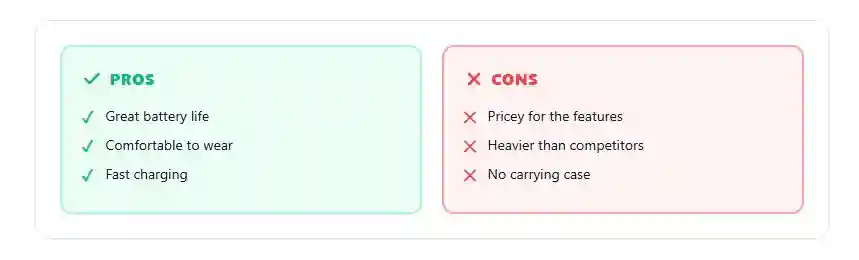
Two-column pros/cons grid. Fill manually or auto-generate from an ASIN.
Manual use
- Insert the block
- Type one pro per line — press Enter for new items
- Do the same in the Cons column
AI-powered use
- In the sidebar, enter an ASIN under Auto-fill with AI
- Click the purple ✨ Generate with AI button
- Wait 5–10 seconds — textareas fill automatically
- Edit as needed
🔥 Deal Box
Red-bannered deal card with optional live countdown.
How to use
- Insert the block
- Enter ASIN, deal title, CTA text
- For countdown: set expiry like
2026-12-31 23:59

Shortcodes (Classic Editor)
Single product
[sak_product asin="B08N5WRWNW" layout="horizontal" cta="Buy on Amazon" badge="Editor's Choice"]Comparison table
[sak_comparison asins="B08N5WRWNW,B09XYZ1234,B07ABC5678"
                title="Best Headphones 2026"
                highlight="1"]
Product list
[sak_list asins="B08N5WRWNW,B09XYZ1234,B07ABC5678" title="Top 3 Picks"]Deal box
[sak_deal asin="B08N5WRWNW" title="Black Friday Deal" expires="2026-11-29 23:59"]Pros & cons
[sak_pros_cons asin="B08N5WRWNW"
               pros="Great sound|Long battery|Comfortable"
               cons="Pricey|Heavy"]
Pros and cons use pipe (|) as separator.
AI Article Generation — Two Workflows
The plugin offers two independent workflows for AI article generation. Use whichever fits the task:
| 🤖 Autopilot | ✨ Article Profiles | |
|---|---|---|
| Best for | Fast bulk generation | Highest-quality premium articles |
| Instructions | Per-batch textarea (non-persistent) | Saved permanently, editable anytime |
| Reference files | ✕ | ✓ TXT, MD, CSV, PDF, DOCX, JSON, XML, HTML |
| Workflow | Queue keywords → cron generates | Click "Generate Now" per article |
| Model | Global Claude setting | Global OR per-profile override |
| Adaptive Thinking | Global setting | Per-profile toggle |
| Prompt Caching | ✕ | ✓ 90% cost savings |
| Scheduled runs | ✓ | Manual only |
🤖 Autopilot — Fast Bulk Generation
Drops keywords into a queue. Cron picks them up and writes articles automatically.
Enable in Settings
Autopilot Lab → Settings → ✈️ Autopilot tab. Check Enable Autopilot.
Choose frequency
Hourly / Twice daily / Daily (recommended) / Weekly.
Posts per run
Start with 1 until you trust the output.
Post type & status
- Post status: Draft (recommended) — review before publish
Default article type
- 💰 Commercial — product roundup
- 📖 Informational — general article
- 🛠 How-to
- 📋 Listicle
- 📚 Guide
Global writing instructions (optional)
Applied to every AI-generated article. Per-keyword instructions override these.
Tone & length
Short (~800w), Medium (~1500w), Long (~2500w).
Adding keywords to the queue
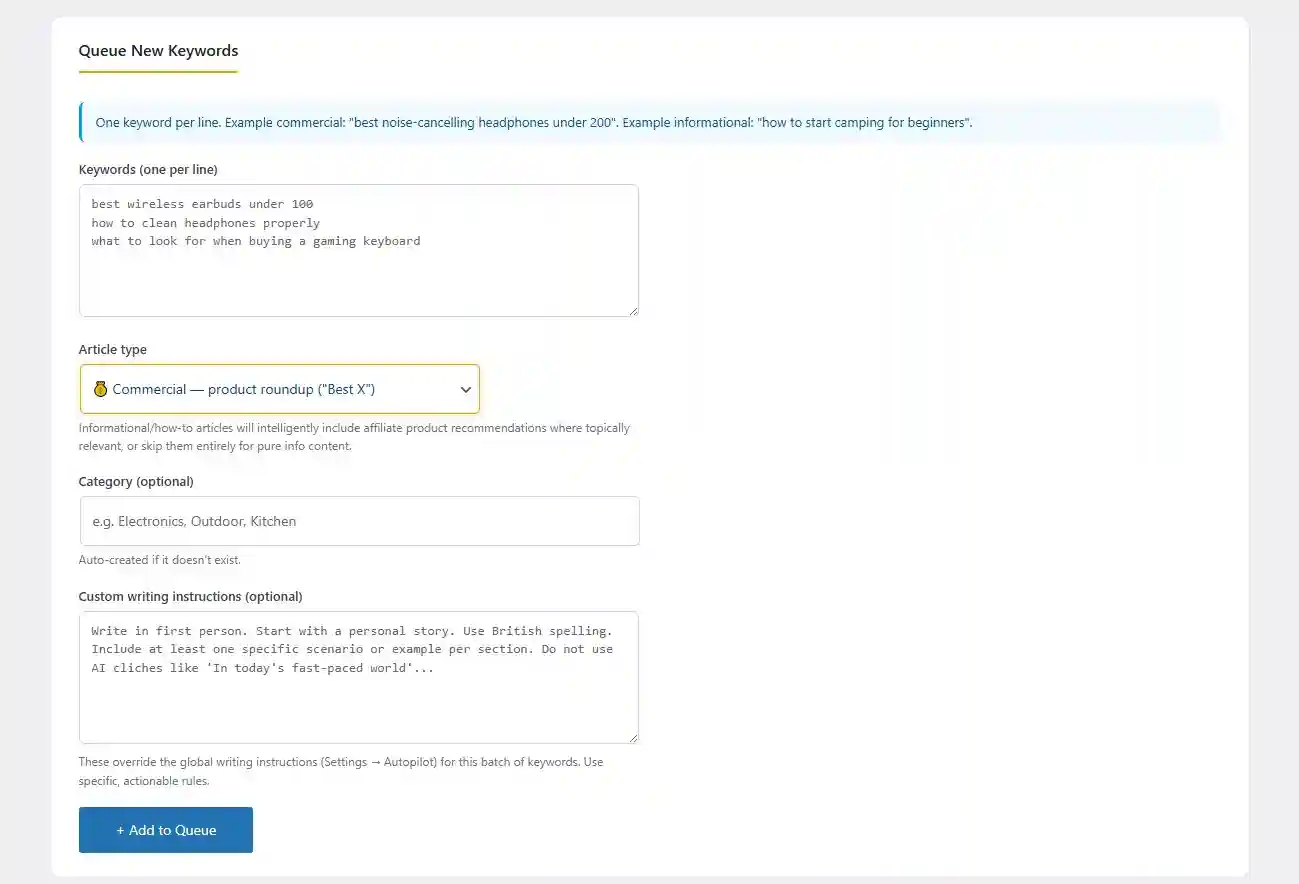
Open Autopilot Lab → Autopilot
Paste keywords (one per line)
best wireless earbuds under 100
how to clean leather boots
top air fryers for small kitchens
Pick article type for this batch
Overrides the global default.
Category (optional)
Auto-created if it doesn't exist.
Custom writing instructions (optional)
Per-batch overrides for this keyword set.
Click "+ Add to Queue"
Queue statuses
| Status | Meaning |
|---|---|
| Pending | Waiting for next run |
| Processing | Currently being written |
| Completed | Post created — click "View Post" |
| Failed | Error — check logs |
Click ▶ Run next to any pending keyword to generate immediately.
The 7-step pipeline
- Amazon search — PA-API finds up to 8 matching products
- Product caching — each saved to your library
- AI article generation — Claude/OpenAI writes title, intro, sections, FAQ, conclusion
- Pros/cons generation — each product gets AI pros/cons (commercial only)
- Block assembly — post is built with all blocks embedded
- Featured image — downloaded from first product
- Publication — saved as draft or published
Typical time: 20–90 seconds per article (longer with thinking enabled).
Quality tips
Better keywords
| ❌ Too broad | ✅ Specific |
|---|---|
| headphones | best noise-cancelling headphones under 200 |
| knives | best chef knives for home cooks 2026 |
Review checklist before publishing
- Does the intro hook the reader?
- Are pros/cons realistic or generic?
- Do descriptions mention specific features?
- Are prices still accurate?
- Replace blurry featured images
- Add your own personal experience paragraph — biggest ranking lift
- Fix AI clichés ("In the world of...", "When it comes to...")
✨ Article Profiles — Premium Quality
When to use Profiles vs Autopilot
- Use Autopilot when: speed matters, many keywords, general-purpose articles
- Use Profiles when: quality matters, consistent voice/brand, reference material needed (sitemap for internal linking, style guide, brand kit)
Create your first profile
Go to Article Profiles
Autopilot Lab → ✨ Article Profiles
Click "+ New Profile"
Name it
Example: "My Tech Blog" — for your reference only.
Save basic defaults
- Default tone, length, article type
- Optional Claude model override (e.g.
claude-opus-4-7) - Enable Adaptive Thinking ✓
- Enable Prompt Caching ✓
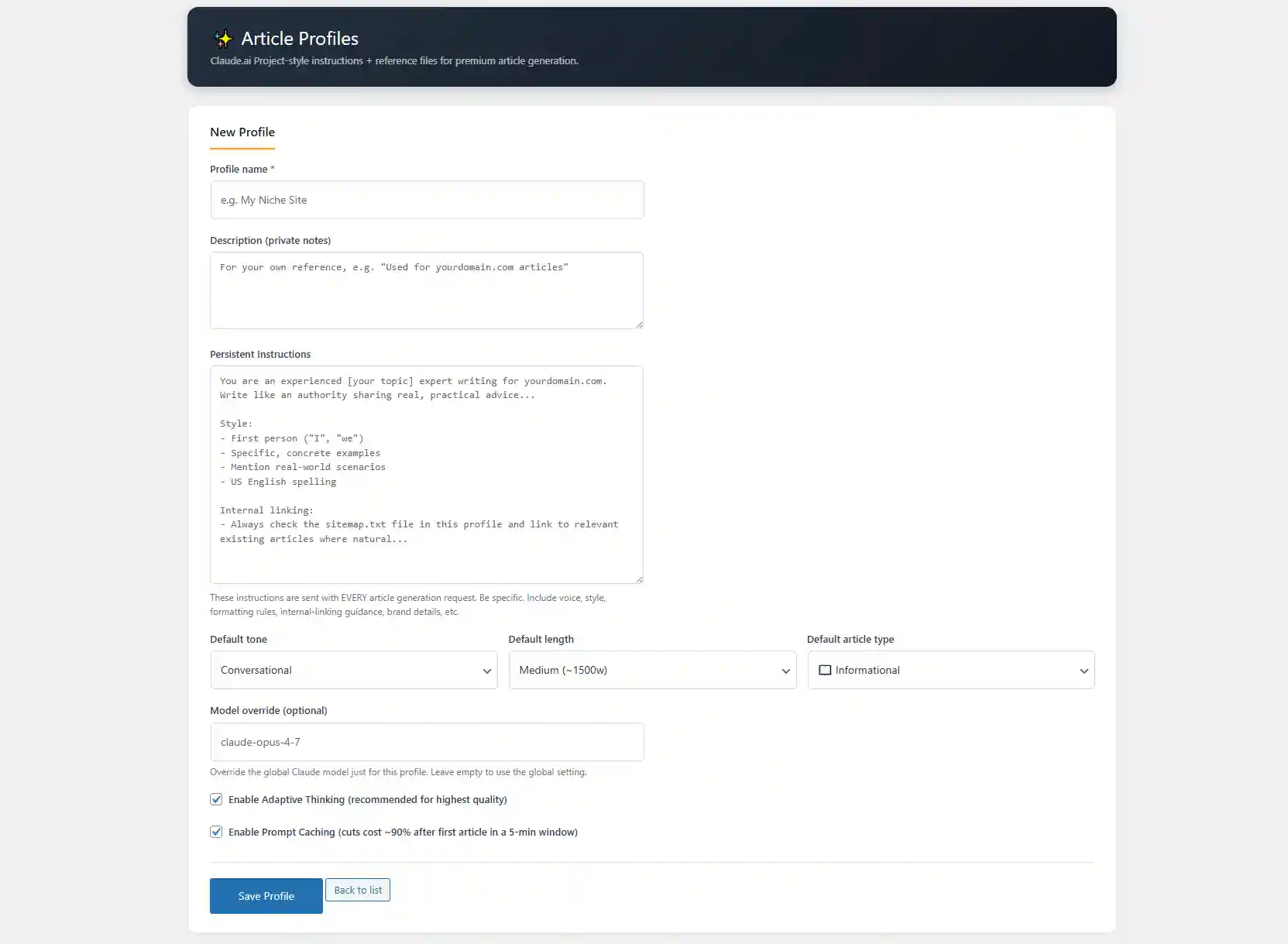
Persistent Instructions
The most important field. These instructions are sent with every article generation request for this profile — exactly like the Instructions box in a Claude.ai Project.
What to put here
- Voice and persona: "You are an experienced [topic] expert writing for yourdomain.com..."
- Style rules: first-person vs third-person, tone, sentence length
- Brand details: name, URL, tagline, anything to reference
- Formatting rules: heading style, paragraph length, list formatting
- Internal linking guidance: "Always check sitemap.txt in this profile and link to relevant existing articles where natural"
- Words/phrases to avoid: AI clichés, over-used terms
- SEO rules: keyword density, meta description format
Reference Files
Upload files that support article writing. Each file's text is extracted and sent as context with every article.
Supported file types
| Type | Best for |
|---|---|
| .txt, .md | Sitemap, link lists, simple style guides |
| .csv | Data tables, product lists |
| .docx | Content strategy docs, brand guidelines |
| PDF guides (text-based only) | |
| .json, .xml | Structured data |
| .html | Reference web pages (stripped to text) |
Typical files for a content site
- sitemap.txt — list of all existing article URLs (for internal linking)
- style_guide.docx — voice, tone, formatting rules
- brand_kit.txt — brand name, tagline, key phrases
- semantic_content_writing_strategy.docx — SEO strategy
Upload a file
In the profile edit page, scroll to "Reference Files"
Click "Choose file"
Click "+ Upload File"
Plugin extracts text and shows token count.
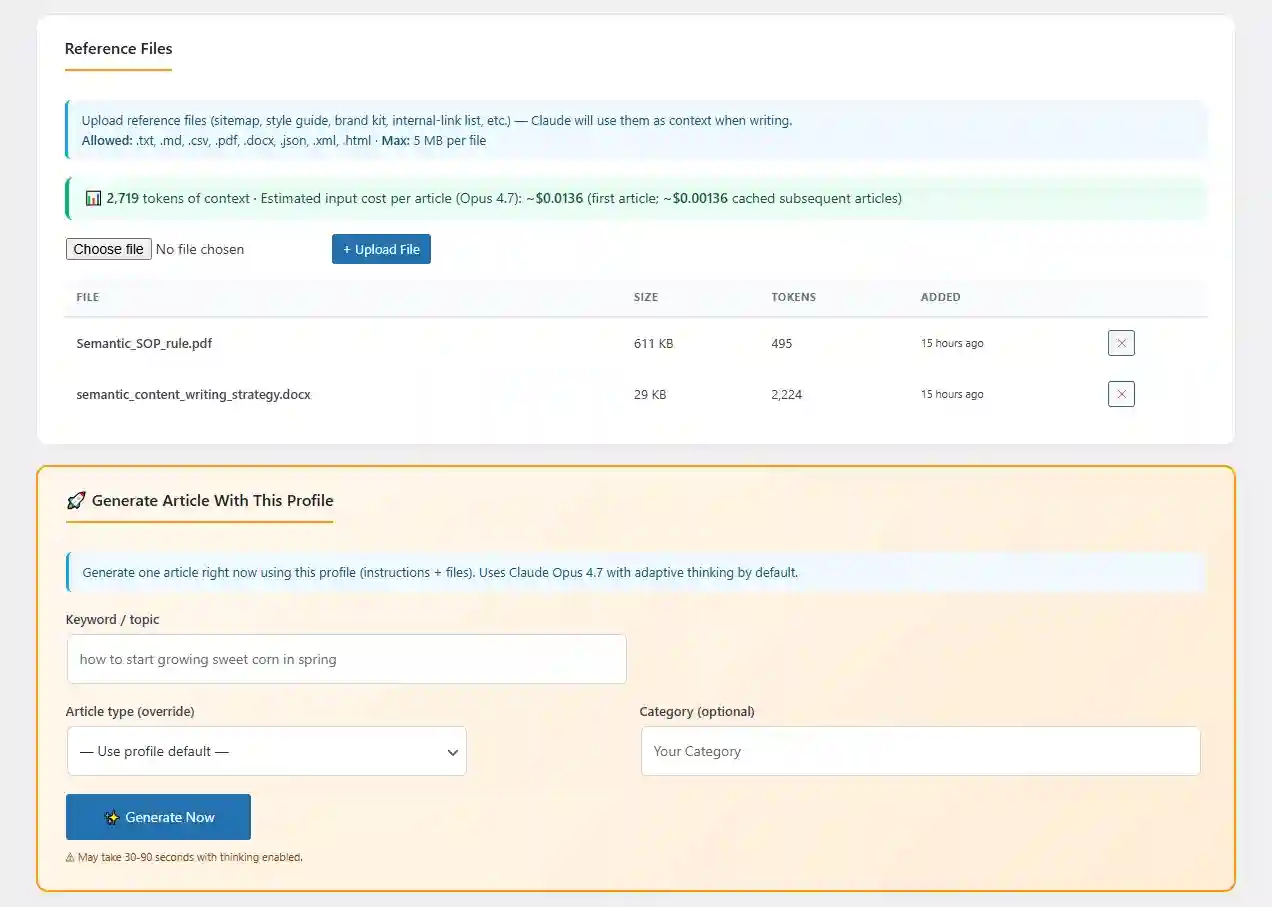
Remove a file
Click the red ✕ button next to any file in the list.
Limits
- 5 MB per file
- ~200K total tokens per profile (safety cap)
Generate an article with a profile
Scroll to "Generate Article With This Profile"
Orange-highlighted section at the bottom of the profile page.
Enter keyword / topic
Example: how to start growing sweet corn in spring
Optional: override article type
Leave as "Use profile default" or pick a different type for this one article.
Optional: category
Click "✨ Generate Now"
Takes 30–90 seconds with thinking enabled.
Success notice appears
Click "Edit post →" to review the draft.
Cost & caching
The profile page shows live cost estimates based on your attached files:
- Total tokens — sum of all file tokens
- First article cost — full input cost (Opus 4.7: $5/M tokens)
- Cached article cost — 10% of full price after prompt cache hit
How prompt caching works
With Prompt Caching enabled, the first article you generate in a 5-minute window pays full price for the file context. Subsequent articles within that window pay 10% for the same context. Big savings when generating multiple articles back-to-back.
Example costs (Opus 4.7)
| Files attached | Tokens | First article | Cached |
|---|---|---|---|
| Just sitemap.txt | ~3,000 | ~$0.015 | ~$0.0015 |
| Sitemap + style guide | ~8,000 | ~$0.04 | ~$0.004 |
| Full brand bundle | ~25,000 | ~$0.125 | ~$0.0125 |
Add output tokens (roughly 4,000 tokens per article = $0.10) to get total cost.
Click tracking
Every affiliate link is wrapped with a tracking redirect: yoursite.com/?sak_go=ASIN&sak_loc=US&sak_pid=123
When clicked, plugin logs ASIN, post ID, device, referrer, hashed IP → redirects to Amazon with your tag.
Viewing stats
- Dashboard — total clicks (7d / 30d), top 5 products
- Top clicked products table — click count per ASIN
AUTH_KEY. Raw IPs never stored. GDPR-friendly.
SEO & Schema.org markup
JSON-LD structured data is injected automatically for any post with Amazon blocks. Google uses this for rich snippets (stars, prices, images).
- Single product: full
Productschema withAggregateRating,Offer,Brand - Multiple products:
ItemListwrapping all products
Testing markup
Use the Google Rich Results Test — should show "Product snippet detected".
Cron & automatic updates
| Event | Frequency | Purpose |
|---|---|---|
sak_price_update | Twice daily | Refreshes up to 20 stale products |
sak_autopilot_run | Hourly | Processes pending keywords |
sak_process_queue | Every 5 min | Processes the autopilot task queue |
Real cron (for low-traffic sites)
WP-Cron only runs when someone visits. Add a real cron job:
*/5 * * * * wget -q -O - https://yoursite.com/wp-cron.php?doing_wp_cron >/dev/null 2>&1Then in wp-config.php:
define('DISABLE_WP_CRON', true);REST API endpoints
For developers — all under /wp-json/sak/v1/, require WP nonce + role.
| Method | Endpoint | Purpose |
|---|---|---|
| GET | /product/{asin} | Get product data |
| GET | /search?keywords=… | Amazon keyword search |
| POST | /ai/pros-cons | Generate pros/cons for ASIN |
| POST | /ai/summary | Generate product summary |
| POST | /autopilot/generate | Trigger immediate generation |
| GET | /autopilot/keywords | List keyword queue |
| POST | /autopilot/keywords | Add bulk keywords |
| GET | /stats | Dashboard statistics |
Troubleshooting
License won't activate
- Verify key typed exactly (no spaces)
- Check server clock is correct (HMAC is time-aware)
- Confirm activation limit not reached
"No products found" for every ASIN
- Re-check PA-API credentials
- Confirm Partner Tag is approved for PA-API
- Need 3+ qualifying sales in 180 days
- Try known ASIN
B08N5WRWNW
AI generation fails
- Test API key on provider's console
- Check billing has credit loaded
- Try fallback provider
- For JSON errors: switch to
claude-opus-4-7orgpt-4o
Article Profile upload fails
- Check file is under 5 MB
- Confirm file extension is in allowed list
- For PDF errors: try .txt or .docx version
- DOCX: requires PHP ZipArchive extension (standard on most hosts)
Profile generation very slow
With Adaptive Thinking enabled, Opus 4.7 can take 60-120 seconds. Disable thinking for faster (but lower quality) output, or use a cheaper model in Model Override.
Gutenberg blocks don't appear
- Clear browser cache (Ctrl+Shift+R)
- Disable other plugins to find conflicts
- Check browser console for JS errors
Autopilot generates empty posts
- Keyword too narrow — broaden it
- AI returned invalid JSON — try
claude-opus-4-7orgpt-4o
FAQ
What's the difference between Autopilot and Article Profiles?
Autopilot is for fast bulk generation (queue many keywords, cron writes them). Article Profiles is for premium quality — you create a profile with persistent instructions and reference files, then generate articles one at a time with maximum context. See the comparison table.
Can I use this without PA-API?
Yes via scraper fallback, but violates Amazon TOS and isn't recommended.
Will AI-generated content rank on Google?
Yes IF you review and add human value. Google's Helpful Content guideline isn't "no AI" — it's "helpful and original". Always add personal experience before publishing.
How much do Article Profiles cost vs regular Autopilot?
Profiles with Opus 4.7 + reference files cost more per article (~$0.10-0.30) vs Autopilot with cheaper models (~$0.01-0.05). Worth it for flagship articles where quality matters most.
Can I import my Claude.ai Project?
Not directly — Anthropic's API doesn't expose Projects. But you can copy the Instructions text and re-upload the same files into an Article Profile. The functionality is equivalent.
Does Prompt Caching really save 90%?
Yes, for cached tokens. First article in a 5-minute window pays full price for file context; subsequent articles pay 10%. Output tokens (the article itself) aren't cached.
Can I use Claude Opus 5 or newer when released?
Yes. Use the "Custom model ID" field in Settings to paste any Anthropic model ID without waiting for a plugin update.
Can I move my license between sites?
Yes. Deactivate on old site first, then activate on new.
What happens if my license expires?
Plugin continues working but license status turns "invalid" and REST endpoints stop. Existing posts still render.
How do I customize block designs?
All CSS uses variables. Add to theme's Additional CSS:
:root {
  --sak-primary: #e91e63;
  --sak-primary-dark: #c2185b;
}
Will Amazon ban my account?
Not if you use PA-API (not scraping), refresh prices within 24 hours (automatic), disclose affiliate relationships (plugin does this), and don't make false claims.
How do I backup my data?
Standard WordPress backups cover everything. All plugin data is in tables prefixed wp_sak_.
SERPsKit Amazon Autopilot Lab — User Guide v1.3.0 — Visit serpskit.com